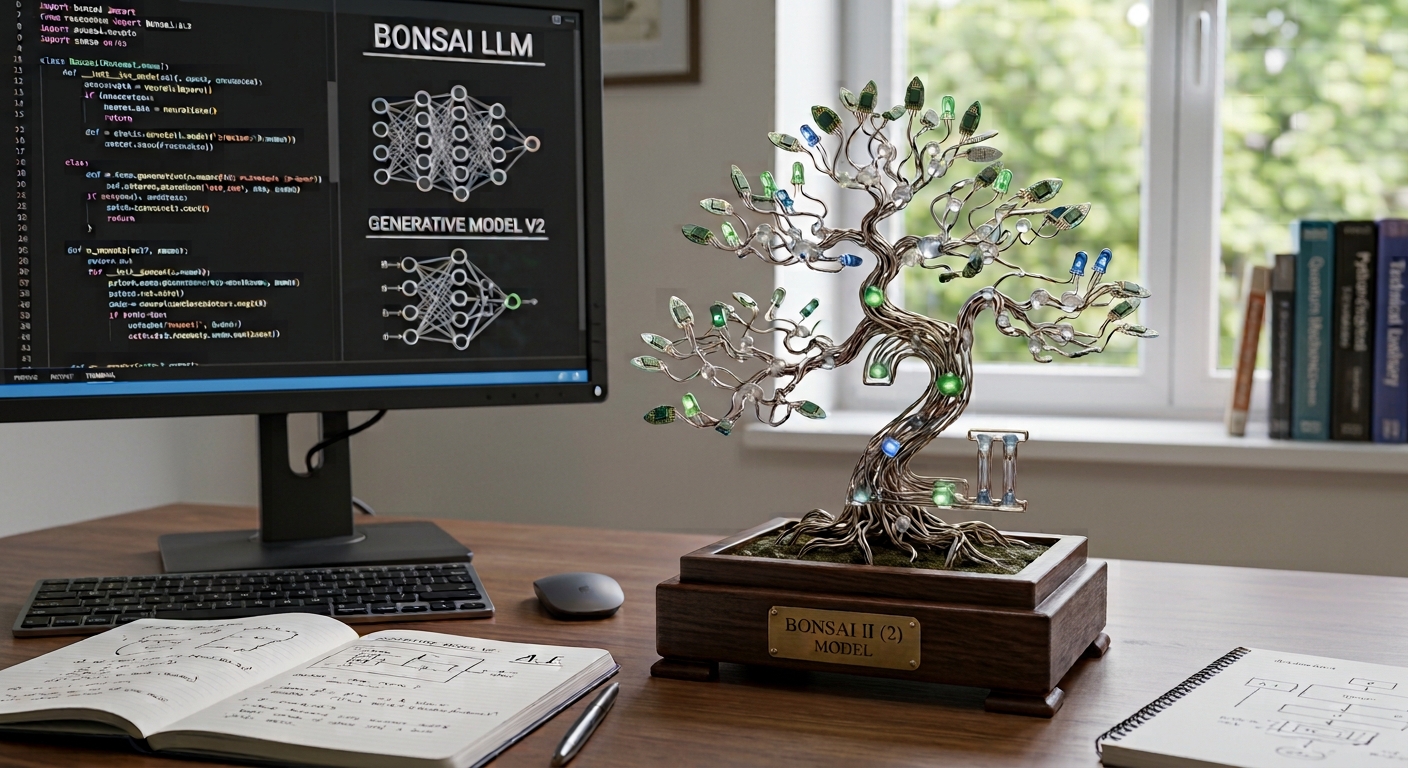
Software Bonsai 2LLMLocal AINvidia GPUProxmox

Bonsai 2 with a llama.cpp Fork

In this guide we set up Bonsai 2 27B with the PrismML llama.cpp fork. We configure the NVIDIA GPU, install the model, test the performance and then set up Bonsai 2 as a permanent llama-server with systemd.

bonsai 2
8 steps 436 views

In the previous guide we set up llama.cpp with CUDA support and ran various GGUF models via Docker. This gave us a general foundation for running large language models locally on an NVIDIA GPU.

In this guide we go one step further and look at Bonsai 2, a 27B model from PrismML.

Bonsai 2 differs from the models in the previous guide in one important respect: for Bonsai 2's special model formats we need a customized version of llama.cpp. The regular llama.cpp version isn't enough.

That's why this time we use the PrismML llama.cpp fork and install it directly in the Linux LXC container. We deliberately skip Docker in this guide.

We use the Ternary-Bonsai-2-27B GGUF model and then test it on our NVIDIA GPU. We also look at the required memory, the GPU utilization and the speed achieved.

The goal of this guide is to get Bonsai 2 running reproducibly on our local AI system and to understand why a special llama.cpp fork is needed for it.

Once Bonsai 2 runs stably and the chosen context size fits our requirements, this forms the foundation for the next step: a local AI agent connected to services such as Telegram.

Tested with the PrismML fork (branch prism, commit 5ae2e169e), CUDA 13.4, Debian 13, October 2026.

1

What is Bonsai 2?

Before we start the installation, let's first look at what makes Bonsai 2 special and why we take a different path than with the regular llama.cpp installation.

What is Bonsai 2?

Bonsai 2 is a 27B language model from Prism ML. The model is based on Qwen3.8-27B and uses a ternary weight representation. As a result, the required model formats and the memory footprint differ significantly from classic GGUF models with, for example, Q4 or Q8 quantization.

For Bonsai 2, the special formats PTQ1_0 and PQ2_0 are available, among others.

These special formats are exactly why we can't simply use the regular llama.cpp installation from the previous guide for Bonsai 2.

Why do we use Bonsai 2?

Bonsai 2 is particularly interesting for our setup because, with an RTX 3060 with 12 GB of VRAM, we are deliberately using a comparatively small GPU.

Thanks to the special ternary weight representation, the 27B model can be stored very compactly. This lets us run a model of this size on a GPU where classic quantizations of a 27B model would need considerably more memory.

Bonsai 2 uses a special ternary representation of the model weights. The weights are represented in a simplified way with three states: -1, 0 and +1. This allows the 27B model to be stored and run particularly compactly.

Another important point is the context.

For a later AI agent or other applications that talk to our local model via an API, a larger context can be very interesting. However, 12 GB of VRAM reaches its limits relatively quickly here, since the KV cache and other data need memory in addition to the model weights.

With a 12 GB GPU a larger context is possible, but you have to keep a close eye on the available resources and adjust the configuration accordingly.

It's exactly this combination that makes Bonsai 2 interesting for our setup:

RTX 3060 12 GB VRAM -> Bonsai 2 27B -> compact ternary weights -> foundation for later agent and API applications

So we don't simply want to run the largest possible model on our hardware. Rather, the goal is to get as much model and context as possible out of limited VRAM.

Requirements

This guide builds on the previous steps. The basic infrastructure must therefore already be in place:

Proxmox VE with an LXC container
NVIDIA GPU with working access from the LXC container
CUDA support
the basic NVIDIA and LXC configuration from the previous guides

The GPU should already be reachable in the LXC container with

nvidia-smi

Docker is not needed for Bonsai 2. The llama.cpp fork is downloaded, compiled and then run directly in the Linux LXC container.

2

Restore the LXC container from a backup

For this guide we don't start with a brand-new LXC container. Instead, we use the backup of our CT 101, which we already set up for the previous llama.cpp guide.

This lets us reuse the already tested NVIDIA and CUDA environment and focus in this guide on Bonsai 2 and the required llama.cpp fork.

⚠️ Important: An RTX 3060 has only 12 GB of VRAM. If the model from the previous guide is still running in CT 101, the memory is occupied and Bonsai 2 won't start in CT 102. Stop it first:

pct enter 101
cd /opt/llamacpp && docker compose down
exit

Check on the host with nvidia-smi that the VRAM is free again.

Restore the LXC container from the backup
First we restore the backup of CT 101 via the Proxmox web interface.

To do this, select:

Datacenter → Storage "local (pve)" → Backup → Restore

Select the corresponding CT 101 backup and restore it as a new container.
For our test we use, for example:

CT ID: 102
Hostname: bonsai-2

You can of course change the CT ID if it's already in use on your system.
After the restore, we start the new container.

Configure the network

Since we created a new container, it needs its own IP address.
To do this, select:
LXC 102 → Network → Edit → IPv4/CIDR

Change the address, for example, to:

192.168.178.136/24

Important: The IP address you enter must not already be used by another device in the network.
The container is now prepared for the rest of the installation.

Check the NVIDIA GPU
Since we restored the container from our existing backup, the already configured GPU access should be present as well.

First we start the new LXC container CT 102.
Then we open a shell on the Proxmox host and enter the container with the following command:

pct enter 102

We are now directly in the container's shell.
There we run the following command:

nvidia-smi

If the RTX 3060 is listed, GPU access works in the restored container.

Note: If nvidia-smi doesn't work after the restore, first check the NVIDIA and LXC configuration from the previous guide. At this point we don't make any changes to the GPU passthrough configuration.

3

PrismML llama.cpp fork

Now we set up the actual Bonsai 2 environment.

For Bonsai 2 we need PrismML's specially adapted llama.cpp fork. It contains support for the special Bonsai 2 models and their model formats.

Install the required packages

First we update the package lists and install the tools required for the build:

apt update
apt install -y git cmake build-essential curl ca-certificates libcurl4-openssl-dev ninja-build wget

This installs, among others, the following components:

  • Git – to download the PrismML fork
  • CMake – to configure the build
  • build-essential – compilers and basic build tools
  • Ninja – build system for compiling
  • curl / wget – for downloads
  • ca-certificates – for secure HTTPS connections
  • libcurl4-openssl-dev – development library for curl support

Install NVIDIA's CUDA Toolkit

For CUDA support we also need the CUDA Toolkit. Among other things it contains nvcc, the CUDA compiler used to compile llama.cpp for the NVIDIA GPU.

We use the official NVIDIA repository directly for this.

First we download the repository package:

wget https://developer.download.nvidia.com/compute/cuda/repos/debian13/x86_64/cuda-keyring_1.1-1_all.deb

Then we install the repository key:

dpkg -i cuda-keyring_1.1-1_all.deb

After that we update the package lists:

apt update

Now we install the CUDA Toolkit:

apt install -y cuda-toolkit

So that the CUDA compiler can then be called directly from the command line, we set the CUDA path:

echo 'export PATH=/usr/local/cuda/bin:$PATH' >> /root/.bashrc
source /root/.bashrc

Then we check whether the CUDA compiler is available:

nvcc --version

This should show the installed CUDA version. On our test system, CUDA 13.4 was installed.

Download the PrismML llama.cpp fork

Now we download PrismML's official llama.cpp fork. We use the prism branch intended for this:

cd /opt
git clone https://github.com/PrismML-Eng/llama.cpp.git

Then we change into the new directory:

cd /opt/llama.cpp

Compile llama.cpp with CUDA

Now the PrismML fork is compiled with CUDA support. We use CMake with Ninja for this.

The CUDA compiler is located at /usr/local/cuda/bin/nvcc. In addition, we specify the CUDA architecture of our RTX 3060, which uses architecture 86. For other GPUs, take the value from the table further below.

cmake -B build -G Ninja \
  -DGGML_CUDA=ON \
  -DCMAKE_CUDA_COMPILER=/usr/local/cuda/bin/nvcc \
  -DCMAKE_CUDA_ARCHITECTURES=86 \
  -DCMAKE_BUILD_TYPE=Release

Then we start the compilation:

cmake --build build --config Release -j$(nproc)

Depending on the CPU, the build can take some time.

Check the CUDA build

After a successful compilation, we first check which devices the newly built llama-cli detects:

/opt/llama.cpp/build/bin/llama-cli --list-devices

With a correctly set up RTX 3060, it should show something like this:

Available devices:
CUDA0: NVIDIA GeForce RTX 3060

This confirms that the PrismML fork was compiled with an active CUDA backend and can access the NVIDIA GPU.

NVIDIA GPU CUDA architecture
RTX 3060 / 3070 / 3080 / 3090 86
RTX 4060 / 4070 / 4080 / 4090 89
RTX 5060 / 5070 / 5080 / 5090 120
4

Download the Bonsai 2 model

Create a directory for the Bonsai 2 model

First we create a dedicated location for the model files:

mkdir -p /opt/llama.cpp/models
cd /opt/llama.cpp/models

This keeps the model files separate from the actual build of the PrismML llama.cpp fork.

Install the Hugging Face CLI

The Bonsai 2 model is provided via Hugging Face. For the download we use the official Hugging Face CLI hf.

Since we use Debian 13, we don't install the CLI directly with pip3. Debian protects the system-wide Python installation against such changes. Instead we use pipx, which installs the application in its own environment.

First we install pipx:

apt install -y pipx

Then we install the Hugging Face CLI:

pipx install "huggingface_hub[cli]"

The hf executable is installed under /root/.local/bin. So that it can be called directly from the command line, we add this directory to the PATH permanently:

echo 'export PATH="/root/.local/bin:$PATH"' >> /root/.bashrc
source /root/.bashrc

Then we check the installation:

hf --version

If a version number is shown, the Hugging Face CLI is ready to use.

Download Bonsai 2 from Hugging Face

For this guide we use the model:

prism-ml/Ternary-Bonsai-2-27B-gguf

Bonsai 2 27B uses ternary weights. For the GGUF version, the packings PTQ1_0 and PQ2_0 are available, among others.

For our first test we use PQ2_0. This model format requires the PrismML version of llama.cpp and is supported for CUDA, among others.

We download the model file directly into the model directory we created earlier:

hf download prism-ml/Ternary-Bonsai-2-27B-gguf \
  Ternary-Bonsai-2-27B-PQ2_0.gguf \
  Ternary-Bonsai-2-27B-mmproj-BF16.gguf \
  --local-dir /opt/llama.cpp/models

Depending on your internet connection, the download can take some time.

Check the installation

After the download, we check whether the model file is present:

ls -lh /opt/llama.cpp/models/Ternary-Bonsai-2-27B-PQ2_0.gguf

The file is then located at:

/opt/llama.cpp/models/Ternary-Bonsai-2-27B-PQ2_0.gguf

On our test system the file is about 6.8 GB in size.

The PrismML fork is now compiled, CUDA support has been checked and the Bonsai 2 model has been downloaded.

In the next step we start Bonsai 2 for the first time with the compiled PrismML version of llama.cpp and check that it runs on the NVIDIA GPU.

5

Start Bonsai 2 for the first time

Now that the PrismML llama.cpp fork is compiled and the Bonsai 2 model has been downloaded, we can do the first start.

We deliberately use a simple configuration at first. This lets us determine whether the fork loads the model correctly and uses the NVIDIA GPU before we adjust further parameters.
Start Bonsai 2 with llama-cli

First we change into the llama.cpp directory:

cd /opt/llama.cpp

Then we start Bonsai 2 with llama-cli:

For the first test we use a context size of 65,536 tokens. We deliberately skip compressing the KV cache for now. On our RTX 3060 with 12 GB of VRAM, this configuration works reliably.

./build/bin/llama-cli \
-m /opt/llama.cpp/models/Ternary-Bonsai-2-27B-PQ2_0.gguf \
-ngl 99 \
-c 65536 \
-p "Briefly explain what a local AI server is."

Depending on the version, llama-cli stays in chat mode after the answer. Exit it with Ctrl + C.

What happens at startup?

At startup, llama.cpp first loads the model and prepares it for execution.

The parameters

  • -m /opt/llama.cpp/models/Ternary-Bonsai-2-27B-PQ2_0.gguf → specifies which model to use.
  • -ngl 99 → tells llama.cpp to offload as many model layers as possible to the GPU.
  • -c 65536 → sets the context size to 65,536 tokens.
  • -p → provides the first prompt we use to test the model.

If the model was loaded correctly, llama.cpp should display information about the model and the hardware used and then generate an answer.

At this point we know that the basic installation works and Bonsai 2 can run on our NVIDIA GPU.

Check GPU utilization

While the model is running, we can check in a second terminal on the Proxmox host whether the model weights are loaded into VRAM.

nvtop

The RTX 3060 should be shown as the GPU in use.
This lets us verify that Bonsai 2 is actually running on the NVIDIA GPU.
At this point we know that the basic installation works.

We're not optimizing anything yet. In the next steps we can look more closely at context size, GPU utilization and speed and then adapt the configuration to our hardware.

From CLI to server

llama-cli is very well suited for our function test at first, because it lets us check without any additional components whether the model is loaded and run correctly.

For later operation, however, we want to run Bonsai 2 as a server. For that we'll use llama-server afterwards.

This lets us reach Bonsai 2 via a web interface or an API, for example, and later connect other applications to it as well.

The switch from the first CLI test to the server happens later in this guide.

6

Performance and GPU utilization

Now that Bonsai 2 has started successfully, we can adapt the settings to our RTX 3060 with 12 GB of VRAM.

In the first function test we worked with 65,536 tokens of context. For ongoing operation we want to make better use of the available memory and increase the context to 131,072 tokens.

Optimize the KV cache

As the context size grows, so does the memory requirement of the KV cache. To save VRAM here, we quantize the K and V cache with q4_0:

-ctk q4_0 \
-ctv q4_0

This lets us run Bonsai 2 on our RTX 3060 with 131,072 tokens of context.

Our tested configuration now looks like this:

./build/bin/llama-cli \
  -m /opt/llama.cpp/models/Ternary-Bonsai-2-27B-PQ2_0.gguf \
  --mmproj /opt/llama.cpp/models/Ternary-Bonsai-2-27B-mmproj-BF16.gguf \
  -ngl 99 \
  -c 131072 \
  -ctk q4_0 \
  -ctv q4_0 \
  -p "Briefly explain what a local AI server is."

The measured VRAM usage is about 9.6 GB without the vision model. The vision model needs roughly another 1 GB. I started it this time as well, because it lets us analyze images too.

Batch size

We can also influence processing with -b and -ub.
-b sets the batch size, while -ub determines the size of the sub-batch that is actually processed at once.

For example:

-b 512 \
-ub 512

Larger values can speed up processing but also need additional VRAM. That's why these values should always be tested to match your hardware.

GPU utilization and speed

During the tests we can use

nvtop

to watch GPU utilization and VRAM usage.

llama.cpp also shows the speed of prompt processing and generation in tokens per second.

In our first test with Bonsai 2 PQ2_0 on the RTX 3060, generation ran at about 36 tokens per second (short prompt, context 131,072). With long inputs the speed usually drops.

Our tested configuration

Model:        Bonsai 2 27B PQ2_0
GPU:          NVIDIA RTX 3060 12 GB
GPU offload:  -ngl 99
Context:      131,072 tokens
K cache:      q4_0
V cache:      q4_0

With that we've found a stable configuration for our hardware.

Bonsai 2 compared to classic quantization

To put into perspective what Bonsai 2 offers, I compared it with two classically quantized models. All three ran on the same RTX 3060 with the same prompt. Muse-Glimmer is not a different format of the same model, but a separate model with 30B parameters.

Bonsai 2 27B (PQ2_0) Qwen3.8-27B (UD-IQ2_S) Muse-Glimmer-30B (UD-IQ2_XXS)
File size 6.8 GB 8.0 GB 10.3 GB
VRAM in use 9.6 GB 10.5 GB 11.3 GB
Context 131,072 32,768 32,768
Generation approx. 36 tokens/s approx. 22 tokens/s approx. 22 tokens/s

How I measured: All models got the same question ("Briefly explain what a local AI server is.") and ran on the same RTX 3060. llama.cpp shows the generation speed at the end of the answer or in the log. I read the VRAM with nvtop while the model was loaded. I deliberately didn't compare prompt processing, because with short prompts it depends heavily on the prompt length. Bonsai ran with 131,072 tokens of context, the other two with 32,768. These are single measurements on my system, not a guarantee for other configurations.

In the next step we switch from llama-cli to llama-server and provide Bonsai 2 as an API.

7

Run Bonsai 2 as a systemd service

Now that we've tested Bonsai 2 and found the right configuration for our hardware, we set up a permanent service.

For this we use llama-server together with systemd. This way Bonsai 2 starts automatically as soon as the LXC container starts.

Test llama-server

Before we create the systemd service, we first test llama-server manually.

cd /opt/llama.cpp

Then we start the server with our tested configuration:

./build/bin/llama-server \
  -m /opt/llama.cpp/models/Ternary-Bonsai-2-27B-PQ2_0.gguf \
  --mmproj /opt/llama.cpp/models/Ternary-Bonsai-2-27B-mmproj-BF16.gguf \
  -ngl 99 \
  -c 131072 \
  -ctk q4_0 \
  -ctv q4_0 \
  --jinja \
  --chat-template-kwargs '{"reasoning_effort":"medium"}' \
  --host 0.0.0.0 \
  --port 8080

The server should then be reachable on port 8080.

We can open the web interface in the browser at the following address:

http://192.168.178.136:8080

Once the web interface appears, we end the test for now with Ctrl+C.

Create the systemd service

Now we create a dedicated systemd service:

nano /etc/systemd/system/bonsai.service

We enter the following:

[Unit]
Description=Bonsai 2 llama.cpp Server
After=network-online.target
Wants=network-online.target

[Service]
Type=simple
WorkingDirectory=/opt/llama.cpp
ExecStart=/opt/llama.cpp/build/bin/llama-server \
  -m /opt/llama.cpp/models/Ternary-Bonsai-2-27B-PQ2_0.gguf \
  --mmproj /opt/llama.cpp/models/Ternary-Bonsai-2-27B-mmproj-BF16.gguf \
  -ngl 99 \
  -c 131072 \
  -ctk q4_0 \
  -ctv q4_0 \
  --jinja \
  --chat-template-kwargs '{"reasoning_effort":"medium"}' \
  --host 0.0.0.0 \
  --port 8080
Restart=on-failure
RestartSec=5
TimeoutStartSec=0

[Install]
WantedBy=multi-user.target

Save the file and then reload systemd:

systemctl daemon-reload

Then we enable and start the service:

systemctl enable --now bonsai.service

Check the status

With the following command we can check whether Bonsai 2 is running:

systemctl status bonsai.service

If the service started correctly, it should show active (running).

We can also display the server's live output directly:

journalctl -u bonsai.service -f

We leave the display again with Ctrl+C.

Automatic start

systemctl enable makes the service start automatically when the container starts.

This means we no longer have to start Bonsai 2 manually after restarting the LXC container.

Even if llama-server exits unexpectedly, systemd tries to restart the service automatically after five seconds.

Web interface and API

Bonsai 2 is now permanently reachable as a local AI server.

We open the web interface at:

http://192.168.178.136:8080

The same address also provides the llama-server API.

We've now laid the foundation for connecting Bonsai 2 to other applications later.

🔒 Security: With --host 0.0.0.0, anyone in your network can use the server. Never expose port 8080 to the internet in your router. Optionally, you can protect the service with a key: append a backslash to the last line of ExecStart and add --api-key YOUR_KEY (a long, random password). Then reload with systemctl daemon-reload and systemctl restart bonsai.service. You'll also need the key later in Hermes Agent.

Manage the service

Note: Only one model can run on the 12 GB GPU at a time. If you want to use the Docker setup from the previous guide in between, stop Bonsai first with systemctl stop bonsai.service.

For day-to-day management we only need a few commands.

Start the service:

systemctl start bonsai.service

Stop the service:

systemctl stop bonsai.service

Restart the service:

systemctl restart bonsai.service

Show the status:

systemctl status bonsai.service

Show the logs:

journalctl -u bonsai.service -f

Bonsai 2 is now fully set up as a systemd service and starts automatically with the LXC container.

In the next step we summarize the results and look at how we can then use Bonsai 2 for an AI agent and other applications.

8

Conclusion & outlook

Conclusion

With Bonsai 2, we got a 27B model running on a comparatively small NVIDIA RTX 3060 with 12 GB of VRAM.

We didn't just install the model, but tested and adapted the entire configuration on our hardware.

Our tested configuration:

  • Model: Bonsai 2 27B PQ2_0
  • GPU: NVIDIA RTX 3060 12 GB
  • GPU offload: -ngl 99
  • Context: 131,072 tokens
  • K cache: q4_0
  • V cache: q4_0

By quantizing the KV cache, we were able to use the available VRAM much more efficiently. With this configuration, Bonsai 2 runs stably and at the same time provides a very large context.

We then set up the model with llama-server as a permanent systemd service. As a result, Bonsai 2 starts automatically with the LXC container and is then reachable via the web interface and the API.

The model we initially started by hand has thus become a standalone local AI server.

Outlook

With Bonsai 2, we've now laid the foundation for the next step.

So far we've addressed the model directly and provided it via the API. In the next step, however, the AI should carry out tasks on its own and communicate with other services.

For this we look at Hermes Agent and connect the local LLM server with Telegram, for example.

The architecture so far is extended as follows:

Proxmox -> LXC container -> NVIDIA GPU -> llama.cpp -> Bonsai 2 -> AI agent -> Telegram & other interfaces

With this we leave pure model operation behind and take the next step toward a local AI agent.

For this we look at Hermes Agent and connect the local LLM server with Telegram, for example.

Continue with part 5: Hermes Agent: from LLM to AI agent

← Back to all Local AI guides